
You can add custom content to a product's page by adding blocks in the Additional Info tab of the product editor. This helps you enhance the page's layout and provide details that entice customers to make a purchase.
The Additional Info field is great for adding:
- Additional images
- Product videos
- Dimensions, care instructions, ingredients, and disclaimers
- Shipping and return information
- Reviews via a third-party service
Tip: You can also display related products at the bottom of product details pages.
Watch a video
Add additional info
Note: We recently updated the product composer, which we’re releasing in waves to all Squarespace sites. If the steps in this guide don’t match what you see on your site, visit Using the new product composer instead.
To add additional info:
- In the Home Menu, click Pages.
- Click a Products Page.
- Double-click a product to open the product editor. For detailed steps, visit Editing a product.
- In the product editor, click Additional Info.
- Hover over the field and click an insert point to add blocks.
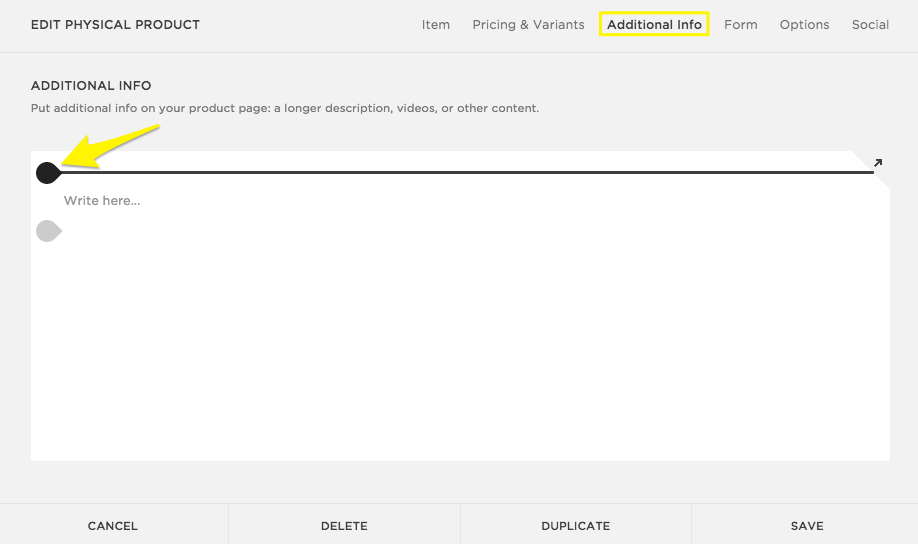
You can add any block to this section, just as you can with pages and blog posts. Some recommended blocks for Additional Info include:
- Text Blocks for adding details like product reviews, dimensions, care instructions, ingredients, disclaimers, and shipping information
- Gallery Blocks for adding images of different angles and variants
- Video Blocks for embedding product videos via YouTube or Vimeo
Continue adding and moving blocks around the Additional Info field until you design a custom layout, and then click Save.
To learn more about adding blocks. visit Adding content with blocks.
Note: The Additional Info editor will always display a Text Block as a placeholder. If you don't want to display additional product information, leave the Text Block blank. Don't delete it, as this may prevent saving.
How additional info displays
The Additional Information's placement depends on your template.
In most templates, the blocks display directly below the main product images. Galapagos and Supply have different layouts:
- Galapagos - The Galapagos template displays a More Info link, which scrolls to the Additional Info area.

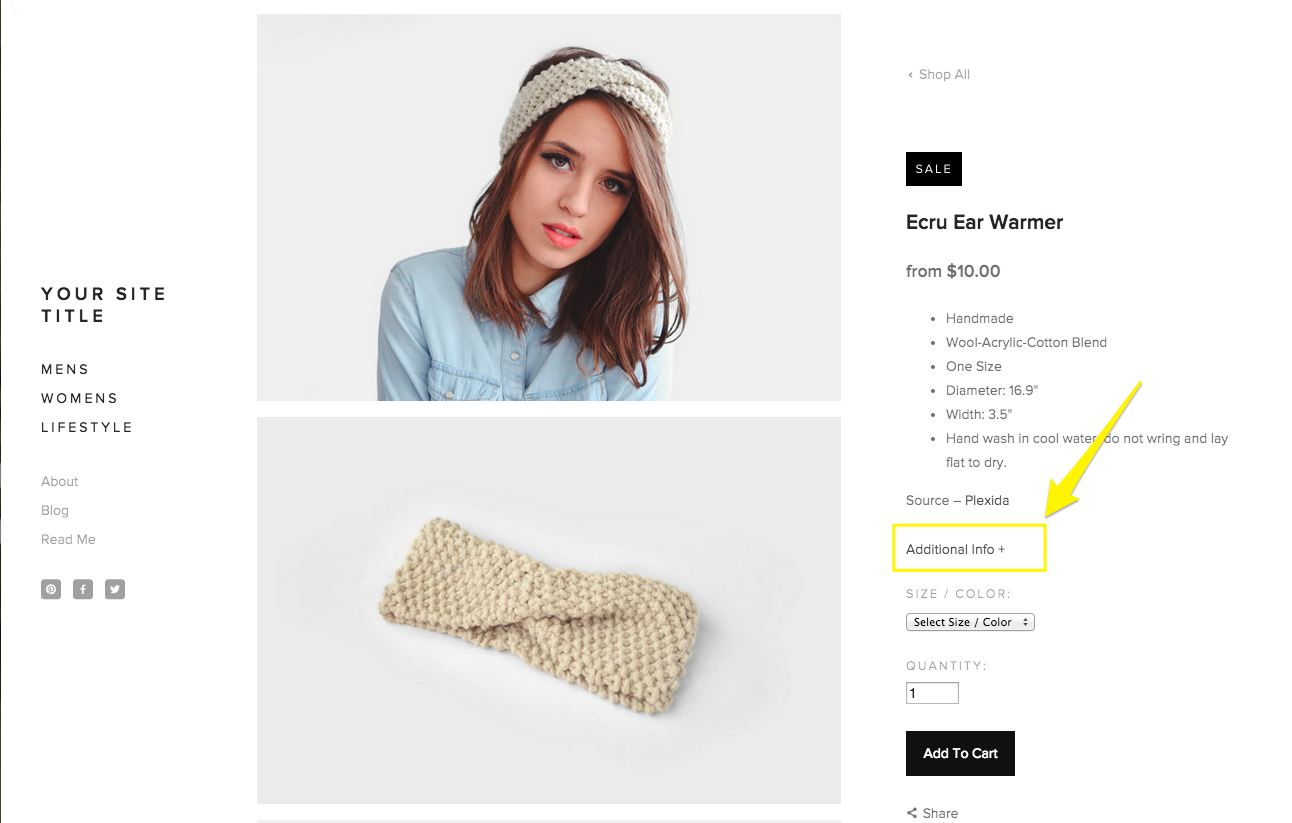
- Supply - The Supply template displays an Additional Info + link, which opens an overlay window containing the Additional Info content.
Comments
0 comments
Article is closed for comments.