
When a product is out of stock, customers can't add it to their carts, and a Sold Out label will display on Products Pages and product details pages. You can also enable product waitlists so shoppers can sign up to be notified when items are back in stock. If you sell one-of-a-kind products or services, or if "Sold Out" doesn't work for your business, you can change the text.
To manage inventory on mobile and get notifications when products are low or out of stock, download the Squarespace Commerce App for iOS and Android.
Tip: Enable limited availability labels to let shoppers know when products are low in stock.
How products become sold out
Products will be automatically marked as sold out after the last item in stock is purchased. You can also set a product as sold out by manually changing the stock level to 0.
Replenish your stock
When you have more items in stock, edit your stock level to reflect your current inventory.
Mark a product as sold out
To mark a product as sold out, set its stock level at 0.
- In the Home Menu, click Pages. Click a Products Page.
- Double-click a product to open the product editor. For detailed steps, visit Editing products.
- In the product editor, click the Pricing & Variants tab.
- Click the number in the Stock column.
- In the Quantity in Stock field, enter 0.
- In the Commerce app, tap Inventory.
- Tap the product you want to flag as out of stock.
- Tap Stock.
- Enter 0.
- Tap Done.
- In the Commerce app, tap Inventory.
- Tap the product you want to flag as out of stock.
- Tap Stock.
- Enter 0.
- Tap Done.
Customize the label
Replace the "Sold Out" text in the Product Status panel:
- In the Home Menu, click Commerce, then click Product Status.
- Click Out of Stock.
- Click the text field to edit it.
- Enter your custom text and click Save. For example, you can change the label to "Sold" or "Class Full."
If variants are sold out, they'll have "(Sold out)" labels next to them in drop-down menus on product details pages:
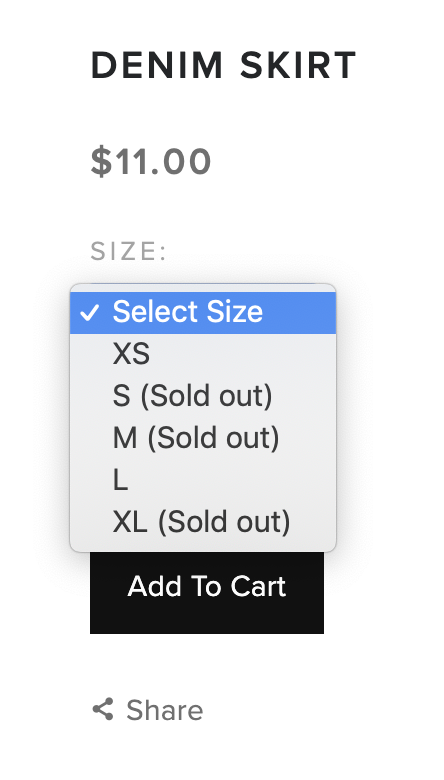
To stop displaying the (Sold out) label next to variants:
- In the Commerce panel, click Product Status, then click Out of Stock.
- Switch the Show in variant dropdown toggle off.
- Click Save.
Sold out labels won't display beside variants in the product drop-down menu when product waitlists are enabled. To learn more about styling sold out labels, visit Styling Products Pages.
Enable product waitlists
Squarespace doesn't currently support a back-order functionality, but you can enable product waitlists to notify interested shoppers when sold out items are back in stock.
Can I hide sold out products?
Displaying sold out products is a great way to advertise what you sell, even if products aren't available. It also communicates that your products are in demand. However, if you want to hide a sold out product, you can hide it.
Sold out labels aren't displaying
If the label doesn't display and you have a version 7.0 Advanced Product Page, it may be hidden in Site Styles. To the show the labels, follow these steps:
- In the Home Menu, click Design, then click Site Styles.
- Find the Products: Status Badges tweak, and ensure Style isn't set to None.
In version 7.1, sold out labels always display beneath the product image.
Comments
0 comments
Article is closed for comments.