
A product's thumbnail represents the item in certain areas of a site, such as Product Blocks, Summary Blocks, Store Pages in version 7.1 and Advanced Products Pages in version 7.0. Thumbnail images can also represent a product on social media.
By default, the first image added in the Item tab of the product editor becomes the thumbnail image. Follow these steps to edit or replace a product's thumbnail.
Tip: To set variant-specific images to appear on the product details page when shoppers browse variants, visit Product images.
Step 1 - Go to your products
There are two ways to open your products for editing.
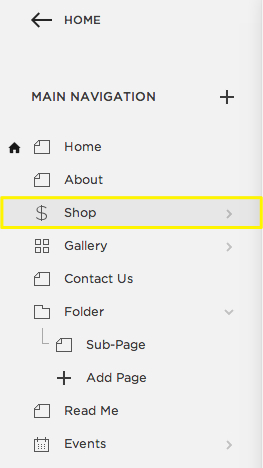
Use the Products Page
In the Home Menu, click Pages, then click a Products Page.
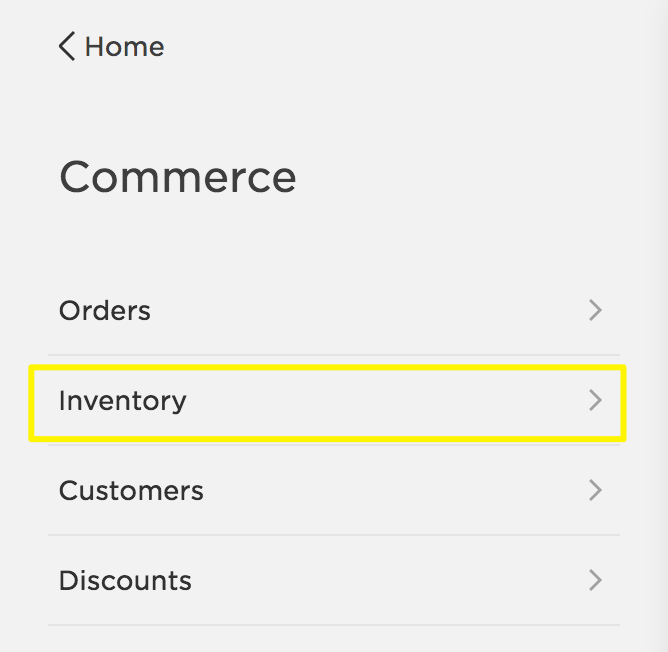
Use the Inventory Panel
In the Home Menu, click Commerce, then click Inventory.
Step 2 - Edit the thumbnail image
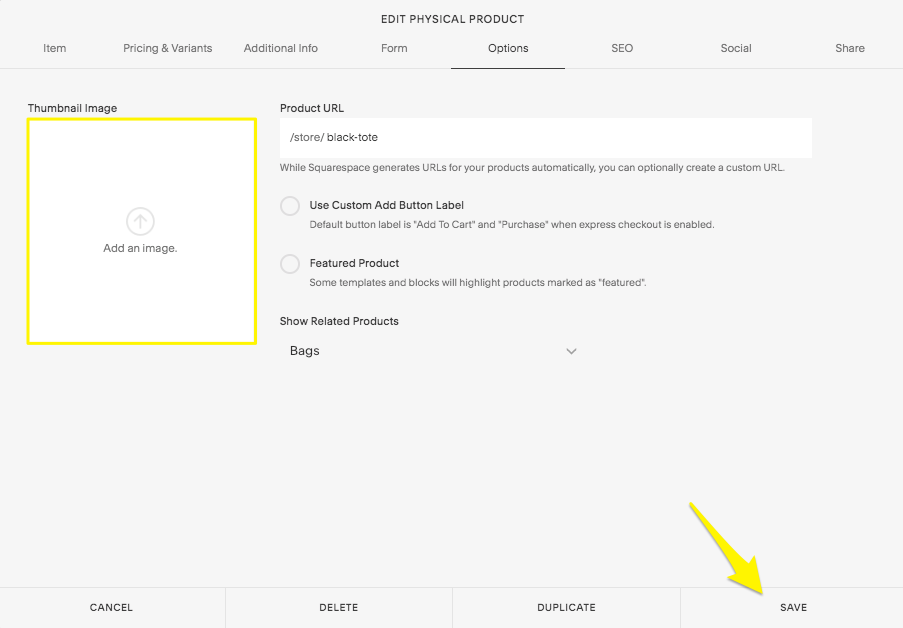
You'll change the thumbnail image in the Options tab:
- Double-click the product you want to edit, then click the Options tab.
- Hover over the Thumbnail Image box, then click the Trash Can icon.
- Drag and drop the new image into the image uploader, then click Save.
Display by template and version
To learn more about where thumbnail images display, visit Product Images.
Comments
0 comments
Article is closed for comments.