
Create an in-store or curbside pickup shipping option so customers can stop by your location to pick up their orders. This guide walks you through setting this up by creating a Flat Rate shipping option just for in-store or curbside pickup.
Note: This option still require customers to enter a shipping address. We recommend clearly labeling the option "In-store pickup ONLY" or something similar so customers don't mistake it for a free shipping option.
Create an in-store pickup option
- In the Home Menu, click Commerce, and then click Shipping.
- Click Add Shipping Option.
- Choose Flat Rate.
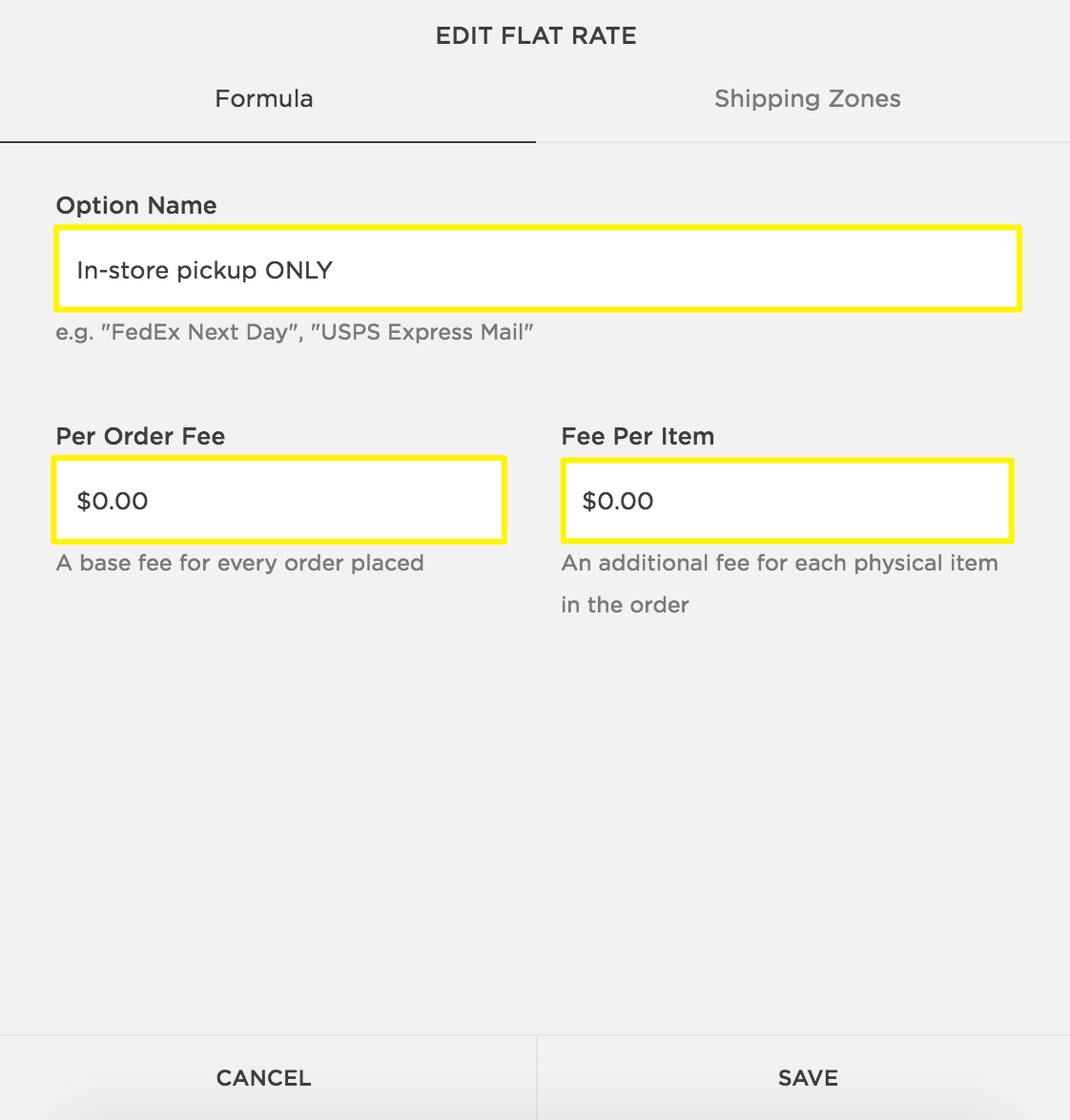
- Enter a name that clearly labels the option as in-store pickup in the Option Name field. This is what customers will see when they choose a shipping option at checkout.
- If in-store pickup is free, set the Per Item and Per Order fees to $0. (If you charge for in-store pickup, enter your pricing.)
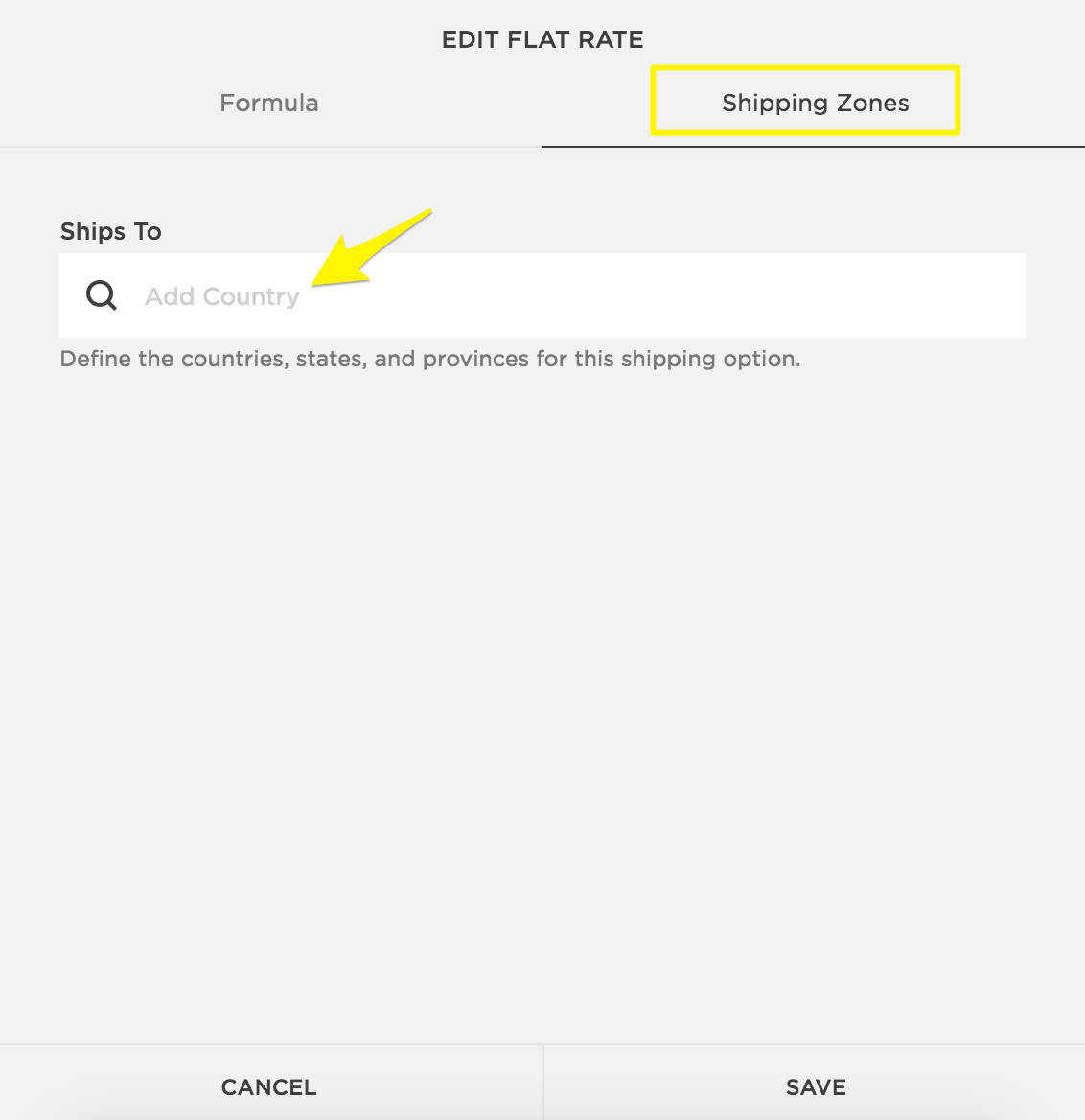
- If you're based in the United States or Canada, click Shipping zones to restrict the in-store shipping option to customers in your city, state, or province.
- Enter your country, click Edit, and ensure only your state or province is chosen. To apply the rule to specific postal codes, click Edit next to a state or province. To learn more, visit Creating shipping zones.
- Click Done to return to the shipping option editor.
- Save.
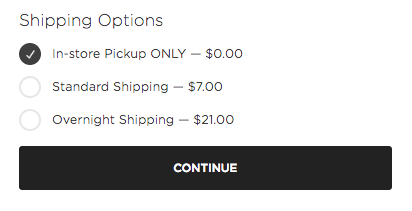
At checkout, your customers will still need to enter their shipping address. After doing so, they can choose your in-store pickup option.
Comments
0 comments
Please sign in to leave a comment.