
Every Squarespace site and parking page comes with a built-in domain (also known as a Squarespace URL) that looks like this:
yoursiteid.squarespace.com
We automatically create your site ID (the first part of the built-in domain) using two randomly generated words, and sometimes a random string of characters. Before May 14, 2018, your site ID automatically included your name. You can change your site ID at any time.
Watch a video
Where your built-in domain appears
You'll always see your built-in domain in your browser address bar when you're logged in, even if you have a custom domain. When you register, transfer, or connect a custom domain to your site, visitors accessing your site with that custom domain will see it in their browser address bars instead of your built-in domain.
However, even after adding a custom domain, visitors who are familiar with how Squarespace works can still see your built-in domain on your site’s login screen or in its source code.
Built-in domain vs. custom domain
Your built-in domain is the unique URL that we automatically assign to you. It always ends in .squarespace.com.
A custom domain is an address you choose for your site, like yourdomain.com. If you use a custom domain, it displays to visitors instead of your built-in domain. If you don’t already have a custom domain, you can register one through Squarespace.
Note: Your built-in domain won't redirect to your custom domain. If you have a custom domain, but a visitor accesses your site from your built-in domain, the built-in domain will display in the browser bar.
Find your built-in domain
If you contact us for help, we might ask for your built-in domain to help troubleshoot your site. If you're logged into your site, you can copy and paste it from the browser address bar. Copy every part of the URL before "/config."

Change your built-in domain
Before changing your domain name, keep the following limitations in mind:
- A built-in domain can have between 3 and 30 characters. Keep in mind that shorter domain names are easier to remember.
- A built-in domain can only have letters, numbers, and hyphens, but it can't end in a hyphen. You can't add symbols like $ and *.
- All built-in domains must begin with a letter.
- It's not possible to change the built-domain on a parking page.
To edit your site ID and built-in domain:
- In the Home Menu, click Settings, and then click Domains.
- Under Built-In Domain, click the domain.
- Enter a new Site ID. This becomes the first part of your built-in domain before the .squarespace.com.
- Click Rename. If this Site ID is taken, you'll see an error message.
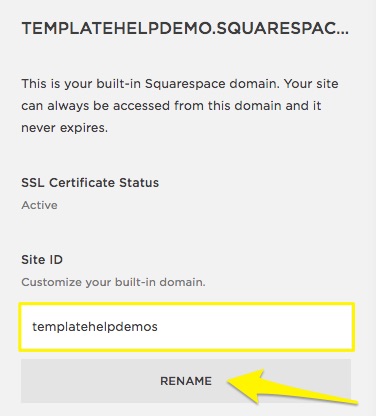
- Your built-in domain will change.
- You’ll receive an email with the subject "Your Updated Squarespace URL" for your records.
- In the Settings panel, tap Domains.
- Under Built-In Domain, tap the domain.
- Enter a new Site ID. This becomes the first part of your built-in domain before the .squarespace.com.
- Tap Rename. If this Site ID is taken, you'll see an error message.
- Your built-in domain will change.
- You’ll receive an email with the subject "Your Updated Squarespace URL" for your records.
Comments
0 comments
Article is closed for comments.