
You can personalize your email campaigns with mail merge tags, which automatically insert content, such as the subscriber name, for each recipient.
This is a great way to connect with your subscribers and make your campaigns feel more personal.
Types of email personalization
Depending on the mail merge tag, you can personalize certain content sections in your campaign, your subject line, or your email preview text. Different campaigns support different types of tags.
Learn about the supported types below and where in the campaign you can add them based on the campaign you're creating.
Available for all mail merge areas:
- Subscriber Name - The subscriber's full name
- Subscriber First Name - The subscriber's first name
- Site Title - Your site's title
Available only in the body of the campaign:
- Linked Site Title - Your site's title linked to your homepage
Available for all mail merge areas:
- Subscriber Name - The subscriber's full name
- Subscriber First Name - The subscriber's first name
- Mailing List Name - The name of the mailing list the subscriber signed up for
- Site Title - Your site's title
Available only in the body of the campaign:
- Linked Site Title - Your site's title linked to your homepage
Available only in confirmation emails:
- Subscriber Email - The email address the subscriber used to sign up
Available for all mail merge areas:
- Site Title - Your site's title
Available only in the body of the campaign:
- Linked Site Title - Your site's title linked to your homepage
Note: When you send test emails, mail merge tags display their unformatted name, like Subscriber Name, since there's no mailing list to pull information from.
Personalize text in your campaign
You can use mail merge tags in text fields of the following sections:
- Text
- Images
- Blog
- Product
To personalize the body of your campaign:
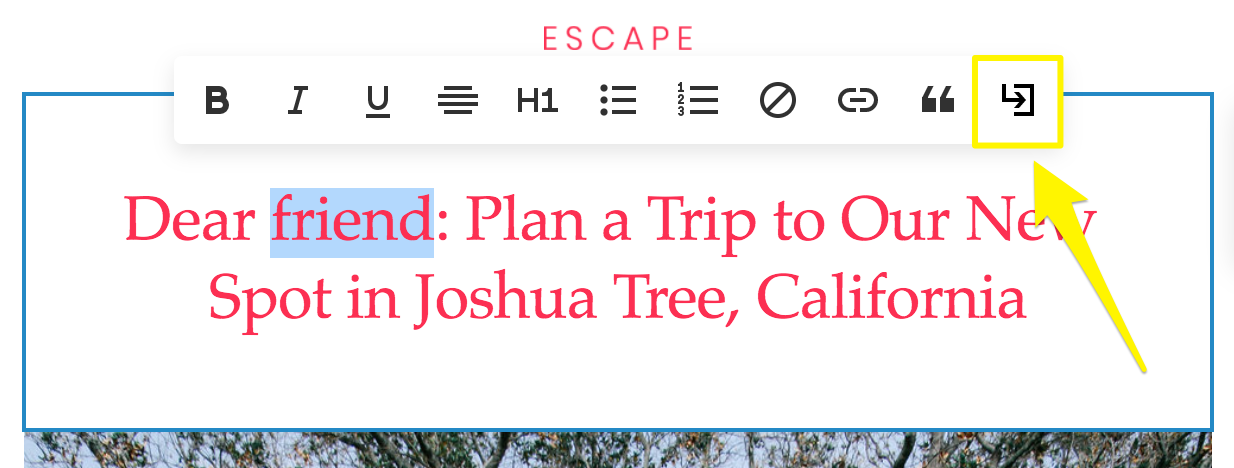
- In the text field, type {, or highlight the text you want to turn into a tag, then click the mail merge icon.
- Select a tag from the drop-down menu.
- Click the tag to add or change the default value. If you highlighted text, the default value will be the text you highlighted.
- Click Apply.
Personalize subject lines or email preview text
To add a mail merge tag to your subject line or email preview text:
- When editing your email campaign, click Email.
- In the Subject or Email Preview Text field, click the mail merge icon.
- Select a tag from the drop-down menu.
- Click the tag to add a default value.
- Click Apply.
Default values
The default value is what displays when the mail merge tag information doesn't exist in the mailing list. If you don't add a default value, the campaign displays the word Subscriber.
Default values aren't editable for Site Title or Linked Site Title tags, since the default value if your site title. To change what displays for these tags, edit your site title.
Comments
0 comments
Article is closed for comments.