
If you purchased a domain from Strato and want to keep it registered with them, you can connect it to your site by following this guide. In this process, you'll change a few settings in your Strato account. After completing these steps, your domain will stay registered with Strato, but it will connect to your Squarespace site.
This guide covers how to connect a domain purchased from strato.de, Strato’s German site. You can read this guide in German.
Before you begin, review our requirements for connecting a third-party domain.
Tip: If your domain is eligible, we recommend transferring it instead of connecting it. Learn more about the differences between transferring and connecting or get started with a transfer.
Step 1 - Start the connection in Squarespace
To connect your domain, start in the Domains panel:
- In the Home Menu, click Settings, then click Domains.
- Click Use a Domain I Own.
- Enter the full domain name you’re connecting in the Domain Name field, and then click Continue.
- Click Connect From Provider.
Note: If you see a message that says "This domain is already connected to another Squarespace site," check your other Squarespace sites to find where the domain is connected, then disconnect it from that site.
- Select Other from the drop-down menu.
- Click Connect Domain.
- In the message that appears, click OK.
- A new panel will open with the records to create in your Strato account. Keep this panel open for your reference.
Step 2 - Log into Strato
To get started in Strato:
- Go to www.strato.de and log into your account.
- In the left sidebar, click the Domains drop-down, then click Domainverwaltung.
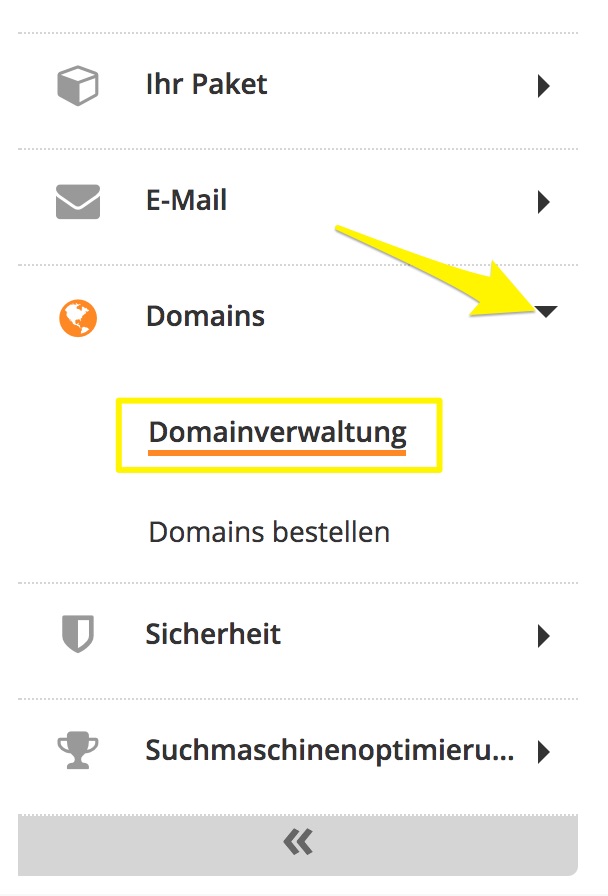
- Find the domain you’re connecting to Squarespace, and click verwalten.

You'll now copy the records from your Domains panel so your Strato domain correctly links to your Squarespace site.
Note: Don’t delete MX Records at this point. MX Records connect your email address, and deleting them could interfere with your email service.
Step 3 - Add the first CNAME
In the first line of your Squarespace DNS Settings, copy the unique code that appears directly below the Host column. The unique code is a random string of numbers and letters that must point to verify.squarespace.com.
Your domain records may be green or red, depending on what Squarespace is seeing from your domain provider.

In your Strato account, you’ll add this unique code as a subdomain.
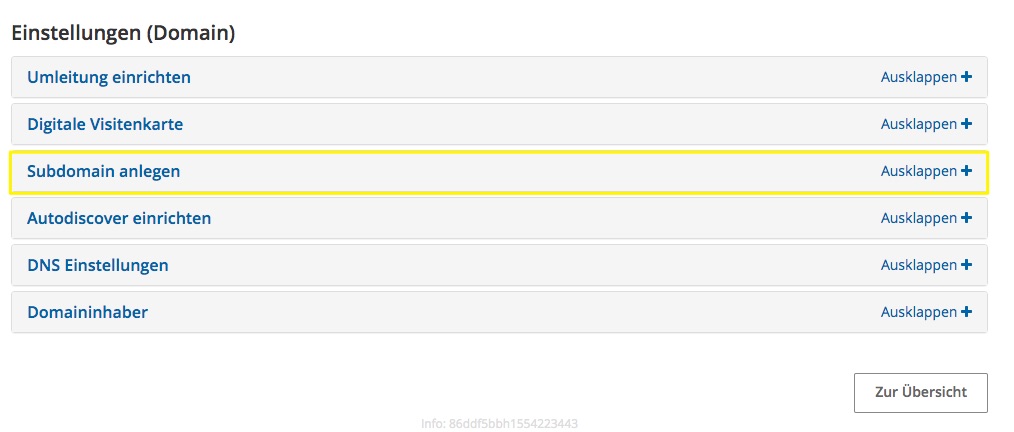
- On your Domainverwaltung page in Strato, scroll down to Einstellungen (Domain).
- Click Subdomain anlegen to expand the menu.
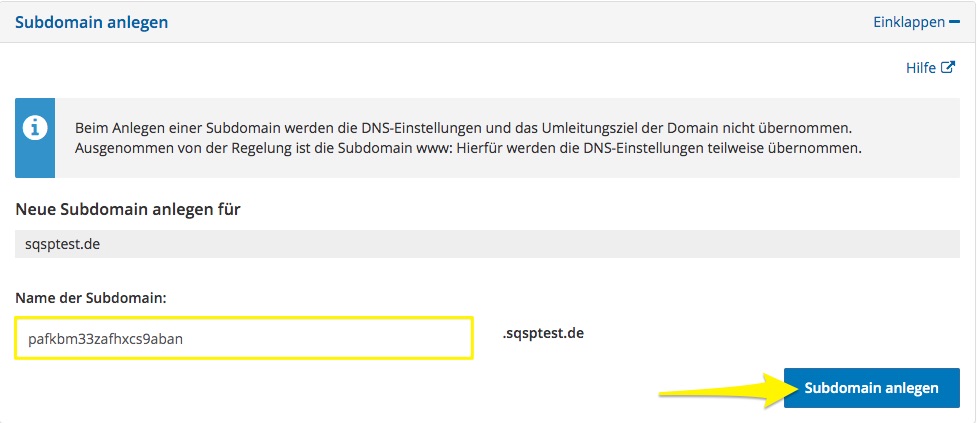
- In the Name der Subdomain field, paste the unique code from your Squarespace panel.
- Click the Subdomain anlegen button to save your changes.
Step 4 - Point the first CNAME
To connect the record to Squarespace, you’ll point this CNAME to a specific Squarespace URL.
- Click Domainverwaltung in the left sidebar to return to the domain overview.
- Click the + to the left of your domain name to show the new subdomain.
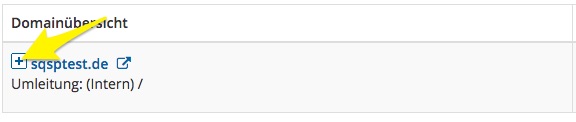
- Click verwalten next to the new subdomain.

- Scroll down to Einstellungen (Domain) and click DNS Verwaltung to expand the menu.
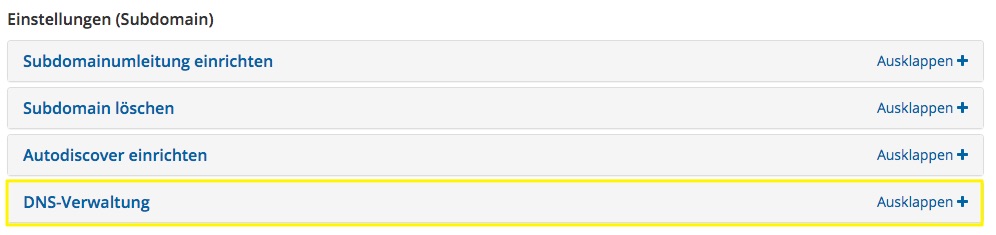
- In the CNAME-Record row, click verwalten.

- Select CNAME-Eintrag ändern.
- In the field that appears, enter verify.squarespace.com.
- Check the box agreeing to the change, then click Einstellungen übernehmen.
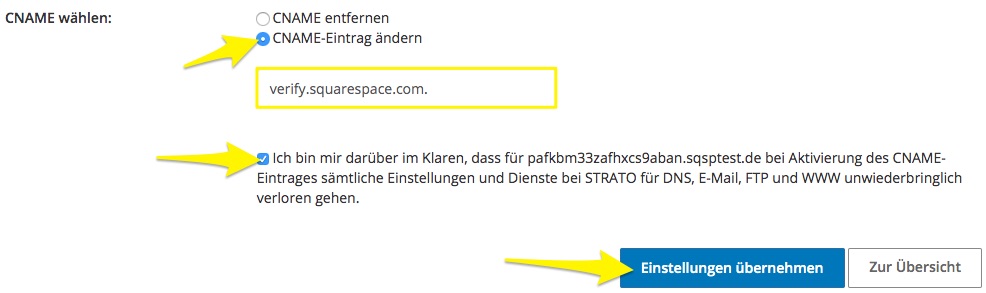
You should now have a CNAME with your unique code pointing to verify.squarespace.com.
Note: If you don't add this record, or if it's entered incorrectly, the domain will unlink from your site after 15 days. If this happens, start over to reconnect the domain.
Step 5 - Add the second CNAME
In the second line of your Squarespace DNS Settings, www appears directly below the Host column. This record must point to ext-cust.squarespace.com.

In your Strato account, you’ll add www as a subdomain in your Strato settings.
- On your Domainverwaltung page in Strato, scroll down to Einstellungen (Domain).
- Click Subdomain anlegen to expand the menu.
- In the Name der Subdomain field, enter www.
- Click the Subdomain anlegen button to save your changes.
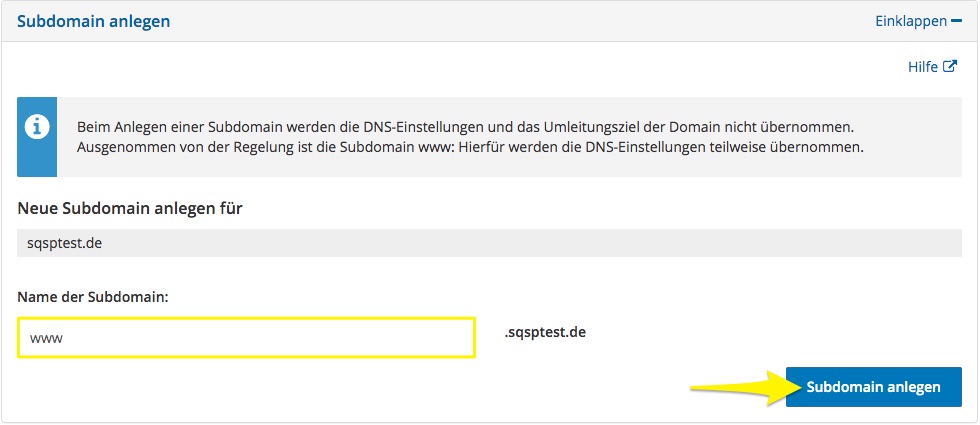
Step 6 - Point the second CNAME
To connect the record to Squarespace, you’ll point the second CNAME to a specific Squarespace URL.
- Click Domainverwaltung in the left sidebar to return to the domain overview.
- Click the + to the left of your domain name to show the new subdomain.
- Click verwalten next to the new www subdomain.
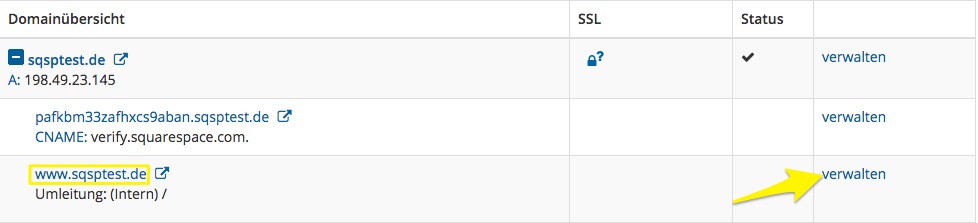
- Scroll down to Einstellungen (Domain) and click DNS Verwaltung to expand the menu.
- In the CNAME-Record row, click verwalten.
- Select CNAME-Eintrag ändern.
- In the field that appears, enter ext-cust.squarespace.com.
- Check the box agreeing to the change, then click Einstellungen übernehmen.
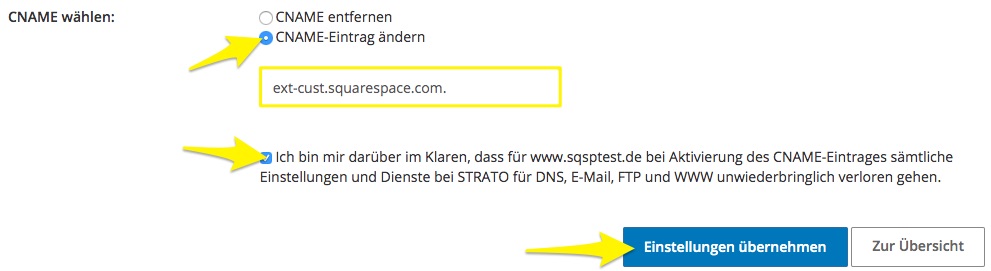
You should now have a subdomain with www pointing to ext-cust.squarespace.com.
Step 7 - Add the A Record
In the last four lines of your Squarespace DNS Settings, you'll see four IP addresses in the Required Data column. Strato only requires one A record to direct to your Squarespace site. Use the steps below to create an A record in Strato matching the first value.
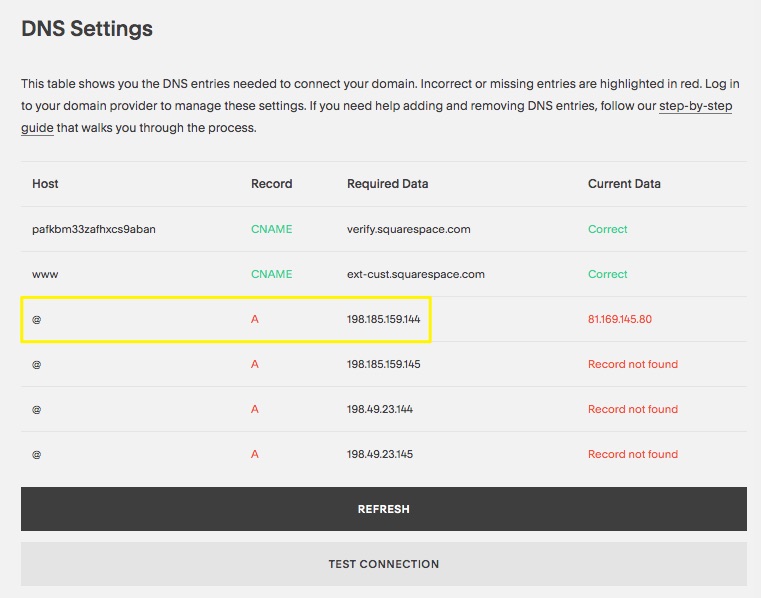
- Click Domainverwaltung in the left sidebar to return to the domain overview.
- Click verwalten next to the root domain.

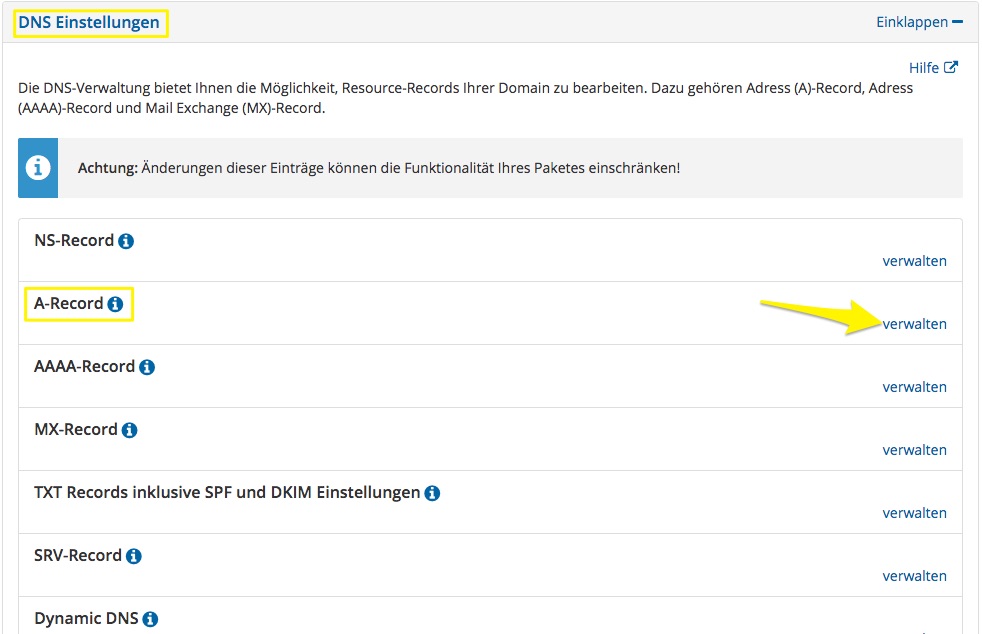
- Scroll down to Einstellungen (Domain), and click DNS Einstellungen.
- In the A-Record row that appears, click verwalten.
- Select Eigene IP-Adresse and enter 198.185.159.144 in the field below it.
- Click Einstellungen übernehmen to save your changes.
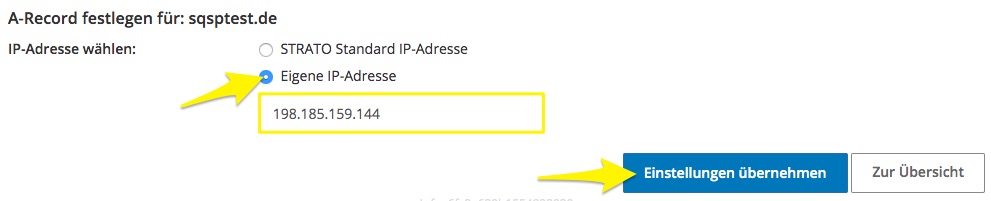
You should now have an A record pointing to 198.185.159.144.
Note: If you have an existing A record, edit it to match the value above. If you see other A Records in your account that don’t match what’s shown in this guide:
- Host: @ - Delete only if it doesn't match what’s shown in this guide.
- Host: blank - Delete. "Blank" specifies your domain without the www in front.
- Host: Mail or Email - Don’t delete. This connects to your email address. Deleting it could interfere with your email service.
Step 8 - Wait for the connection to complete
Now that you've entered the records, it can take 24 to 72 hours for the connection to start working properly. While you wait:
- You can return to your Squarespace DNS Settings, click Refresh below the records, and the Current Data column will start to show if your records are entered correctly. When the domain is correctly linked, it will appear in the Domains panel with a Connected label.
- It’s normal to see errors in the Domains panel or when visiting your domain for up to 72 hours after completing the steps in this guide. If you see any error messages after 72 hours has passed, see the next section.
Troubleshoot with the DNS record checker
If we detect that your records weren’t set up properly, your domain will appear in the Domains panel with the message Could not verify domain ownership.

To troubleshoot, use the DNS checker tool in the Domains panel to see the exact CNAME and A Records to fix with your domain provider.
Click the domain in the Domains panel, and then click DNS Settings. For detailed instructions, visit Checking your domain mapping records.
Getting more help
For more help with settings in your Strato account, contact their support team. To help them understand your issue, you can use one of our sample messages.
Comments
0 comments
Please sign in to leave a comment.