
If you have a domain with 1&1 IONOS, you can transfer it to Squarespace by following this guide. When you transfer your domain, you can manage all of your domain settings and billing from your Squarespace account. You may also find 1&1 IONOS' guide helpful as you work on the transfer.
Before you begin the transfer, consider reviewing:
- The pricing and billing details.
- Our domain transfer requirements.
- The timing involved in transferring a domain.
- The steps needed to move your custom email address.
Note: 1&1 IONOS recommends starting your domain transfer at least one month before the domain expires to allow enough time to complete the process.
Step 1 - Log into 1&1 IONOS
Go to 1&1 IONOS and log into your account to prepare your domain for transfer.
Note: If you have US and CA control panels, you may need to select the relevant package for your domain first.
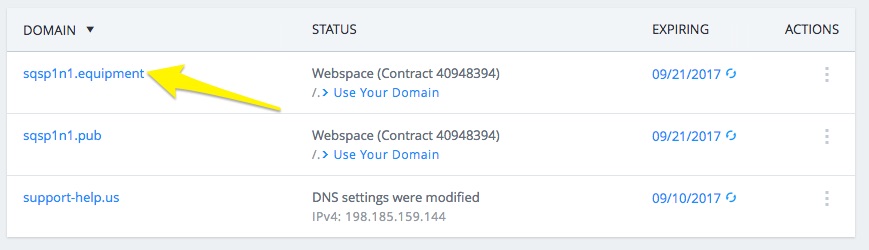
If logging in doesn't automatically bring you to the Domains & SSL page, choose this option from the drop-down menu at the top of the page. Click the domain you'd like to transfer.
Step 2 - Verify domain contact information
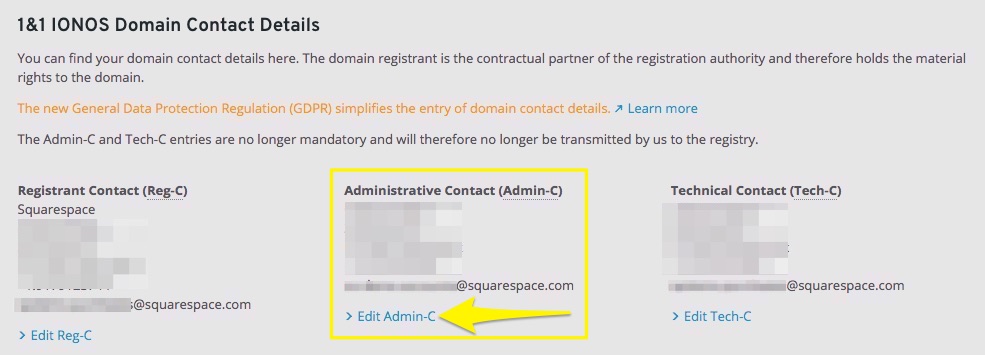
Under Privacy & Contact Details, confirm that all the information listed under Administrative Contact (Admin-C) is correct. All communications regarding the transfer will be sent to this email address.
Note: To ensure a smooth transition, the person listed as the Administrative Contact (Admin-C) should handle the transfer.
To edit this information, scroll down to 1&1 IONOS Domain Contact Details and click Edit Admin-C. If you change any contact details, you'll receive a verification email to confirm the update. Click the link in the email to ensure all information is updated. See 1&1 IONOS' documentation for more details.
Step 3 - Unlock your domain
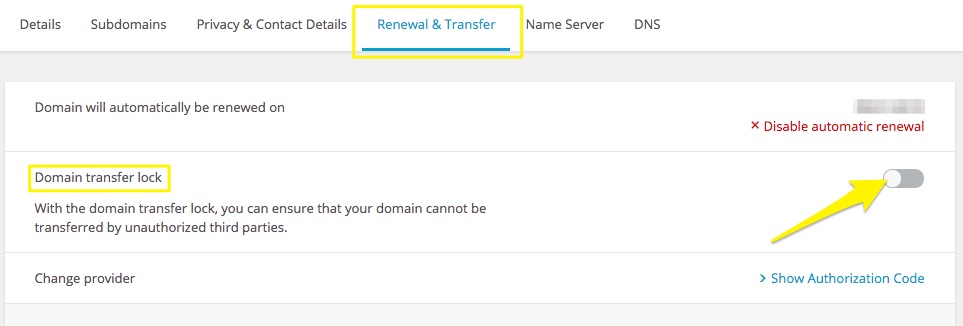
Click the Registration & Transfer tab. Next to Activate domain transfer lock, toggle off the lock. When it's unlocked, it will be gray instead of blue.
Step 4 - Get authorization code
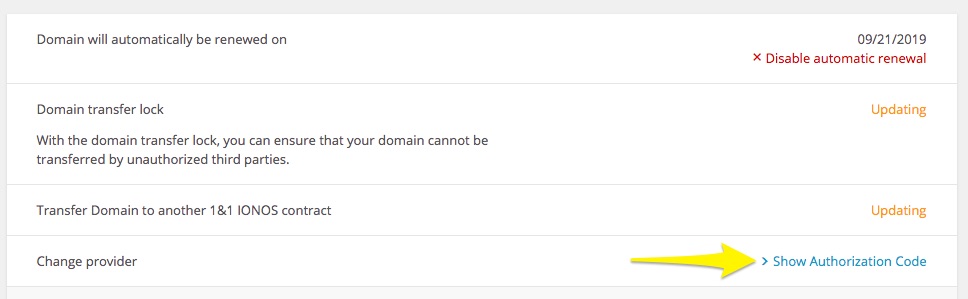
Next to Change provider, click Show Authorization Code. Your authorization code will appear in a pop-up. You’ll enter this code later, so copy and paste it in a safe place before continuing.
Step 5 - Start the transfer and enter the authorization code
Begin the transfer process in your Squarespace site’s Domains panel:
- Confirm that you’re logged into the correct Squarespace site.
- In the Home Menu, click Settings, then click Domains.
- Click Use a domain I own.
- Enter the full domain name you’re transferring in the Domain Name field, then click Continue.
- Click Transfer to Squarespace.
- In the Enter Authorization Code field, paste the authorization code, then click Continue.
Step 6 - Review DNS settings
In the next window, confirm the DNS records to move to Squarespace. To minimize any downtime, we recommend keeping them all toggled to ON. Any options toggled to OFF must be managed manually.
- Point to Squarespace - Change CNAME and A records to point the domain to Squarespace.
- Keep Other DNS Records - Keep other DNS records intact, like MX records for email. Click View records to review the current DNS settings.
- Move Nameservers to Squarespace - Move the domain's nameservers to Squarespace. If you toggle this option off, it’s not possible to move DNS records to Squarespace.
If all settings look correct, click Continue.
Step 7 - Review and confirm registration details
In the next window, confirm the domain’s registration details. Ensure that the address shown in the Email Address field is correct, as this is how we’ll notify you that your transfer is complete.
These fields automatically populate with information we detect from your WHOIS records with your original registrar. For help formatting these fields, visit Domain contact information.
When everything looks correct and all required fields are complete, click Continue. If you’ve added any new data, your WHOIS records will update when your transfer is complete. This won't disrupt the transfer process, but will ensure all contact records are correct when they move to Squarespace.
Step 8 - Confirm registration terms and billing
Note: If your site is on a trial, you'll be prompted to enter your payment information before this step.
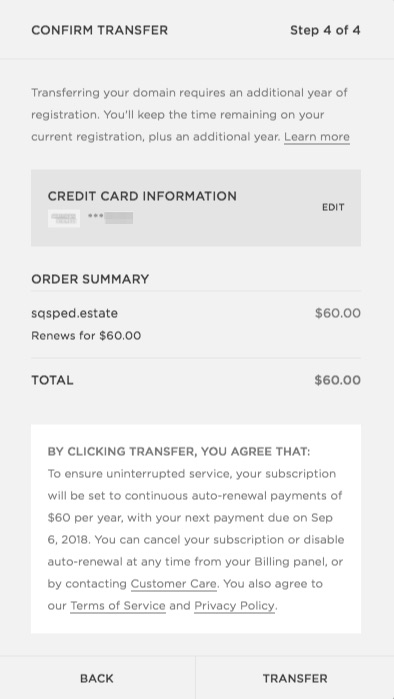
By transferring your domain to Squarespace, you’ll be charged for one additional year of domain registration with Squarespace. Pricing is based on your domain’s TLD, and may be free if you’re eligible.
To confirm the transfer:
- Confirm the credit card on file.
- Confirm the total charge for one year of domain registration.
- Review the terms in the white box, including your domain’s new expiration date.
- If everything looks correct, click Transfer.
- You'll see a message confirming you've initiated the transfer. Click Okay to return to your Domains panel.
Step 9 - Accept the transfer from 1&1 IONOS
After you've entered your authorization code, 1&1 IONOS sends an email to the domain administrator with a link to approve or deny the transfer. If you don't click the link, 1&1 IONOS will automatically approve the transfer on the date noted in their email.
Step 10 - Check the transfer status and fix issues
Next, return to the Domains panel to confirm the transfer is in progress. If there's an issue with the domain, an error message will display.
To check the status of your transfer:
- In the Home Menu, click Settings, then click Domains. You'll see a "Transfer pending" message under your domain.
- Click your domain, then click Refresh to see the current status.
Transfer status error messages
If your domain displays an error message, you can clear it depending on the message:
- Domain is locked - This message displays if the domain is locked, which blocks the transfer. To fix the issue, log into 1&1 IONOS and unlock the domain. After unlocking the domain, this message will clear.
- Authorization code needed - This message displays if 1&1 IONOS rejected the authorization code you entered in Step 5. To fix the issue, ensure the authorization code is correct, enter it in the error message's text field, then click Submit. We suggest copying and pasting the code for accuracy. After entering the correct authorization code, this message will clear.
Step 11 - Wait for the transfer to complete
1&1 IONOS should release the domain to Squarespace. If your domain transfer is still pending after 15 days, and you’ve correctly followed all steps above, contact 1&1 IONOS for more details. This timing is out of Squarespace’s control.
While your transfer is in progress, we don't recommend changing your DNS settings or adding a G Suite email account. Wait until your domain is fully transferred before adding any new integrations.
When the domain is fully transferred, you'll receive a "Thank you" email from customercare@squarespace.com, and the domain will appear in the Domains panel with a green label.
Next steps
After the domain transfer is complete, you can:
- Cancel your 1&1 IONOS hosting package account if you no longer need it. You’ll now manage all domain settings and billing through Squarespace. Even if your 1&1 IONOS account doesn't have any domains, your hosting plan will remain active and 1&1 IONOS will continue billing you until it's cancelled.
- Set this as your primary domain.
- Choose to hide the domain’s “www” prefix.
- Enable SSL for your site, if you haven't already.
- Add a custom email address through our integration with G Suite.
- Register additional domains.
- Review your domain invoice.
Cancel or remove the transfer
If your domain transfer is pending, you may be able to cancel it:
- In the Home Menu, click Settings, then click Domains.
- Click the domain that's pending transfer.
- Click Cancel transfer.
- Confirm the cancellation.
If your Domains panel still lists the domain as Transfer In Progress, ask 1&1 IONOS to deny it. This may or may not be possible, and depends on whether the current provider has already approved and released the domain.
If the transfer failed and you need to try again, you can remove the current transfer before starting over. While this step isn't necessary, you may find it easier to keep track of pending transfers.
- In the Home Menu, click Settings, and then click Domains.
- Click the domain under Transfers In Progress.
- In the Transfer Error box, click Dismiss.
You may need to refresh your browser for the failed domain to disappear.
Troubleshooting failed transfers
If your domain fails to transfer, you’ll get an email from Squarespace. This can happen if you entered wrong information in the registration field, 1&1 IONOS rejected the transfer, or for other reasons. For a full list of scenarios, see our FAQ.
Tips
- For help communicating with 1&1 IONOS, visit Requesting third-party domain help and review the "Transfer help" sections.
- If you continue to have trouble, you may want to keep your domain hosted with 1&1 IONOS and connect it to Squarespace instead.
Getting more help
For more help with transferring from 1&1 IONOS, contact their support team. You can also visit their documentation.
Comments
0 comments
Please sign in to leave a comment.