
Squarespace includes a built-in Image Editor for making changes to images on your site. Editing tools include cropping, aspect ratio, brightness, saturation, and contrast.
Any changes you make using the editor will permanently change the uploaded images. We recommend backing up your original image files.
Watch a video
Before you begin
- The editor converts edited .gif files to static .jpg files.
- Image edits are permanent on your site and can't be reverted. Before clicking Save, we recommend backing up the original file on your computer.
- The editor doesn't support transparency in .png files.
- Previewed Getty Images can't be edited until you've licensed them.
- The editor isn’t available for images uploaded to Site Styles in version 7.0.
Where to use the Image Editor
This editor is available for most images on your site, including:
- Image Blocks
- Video Blocks (video thumbnail)
- Gallery Blocks (images and video thumbnails)
- Gallery Pages (images and video thumbnails)
- Gallery sections (images)
- Product images
- Cover Pages
- Thumbnail images (pages, posts, events, products, and album artwork)
- Logos
- Favicons
- Contributor profile pictures
- Email Campaigns
Open the Image Editor
The steps to open the Image Editor depend on where the image is on your site.
- Image Blocks, gallery sections, and thumbnail images - For Image Blocks, gallery sections, and thumbnail images, open the editing/upload area, and click Image Editor.
- Other images - For Gallery Pages, Gallery Blocks, Video Blocks, Cover Pages, logos, favicons, and profile pictures, hover over the thumbnail and click the pencil icon.
Edit images
In the Image Editor, you'll see icons in the top-right corner for each editing menu. Click the Adjust, Crop, or Filter icon to see each set of editing tools.
After editing, you can cancel or save changes:
- To cancel your last change, click the Undo icon (left arrow). Click the Redo icon (right arrow) to reapply it.
- To cancel all changes in that panel, click Reset.
- To abandon all changes, click Cancel to cancel all edits and close the Image Editor.
- To save all changes, click Save in the top-left corner. After saving, image edits are permanent and can't be reverted.
Learn more about each editing tool in the sections below.
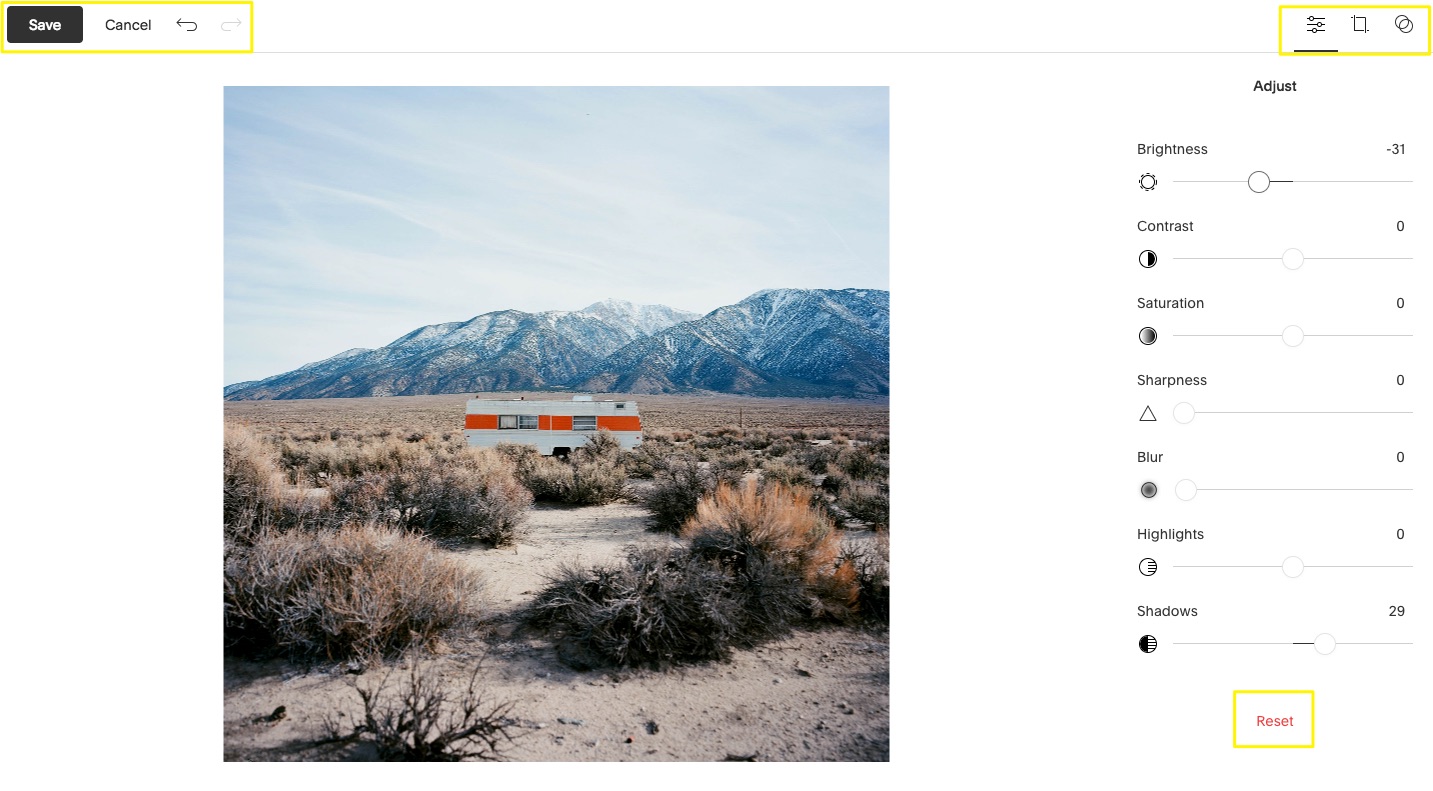
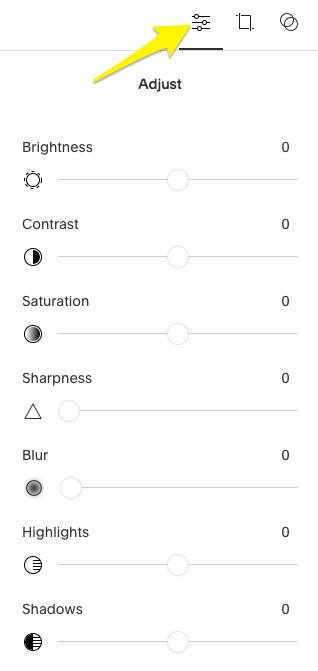
Adjust
Click the Adjust icon, then use the sliders to adjust each option.
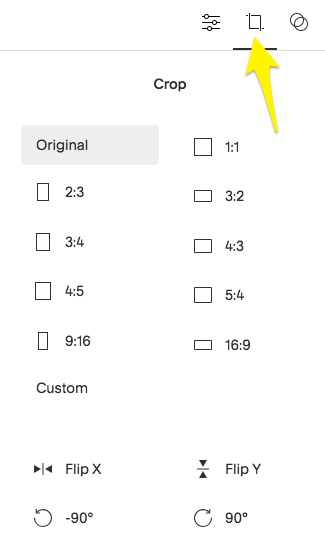
Crop, flip, and rotate
Click the Crop icon, then use the tools in the sidebar to edit your image.
- Crop - Click an aspect ratio icon to crop using standard dimensions, or click Custom to crop the image manually. Click Original to remove all cropping.
- Flip - Click Flip X to flip the image horizontally or Flip Y to flip it vertically.
- Rotate - Click -90° or 90° to rotate the image 90° to the left or right.
- Straighten - Use the slider under the image to straighten it.
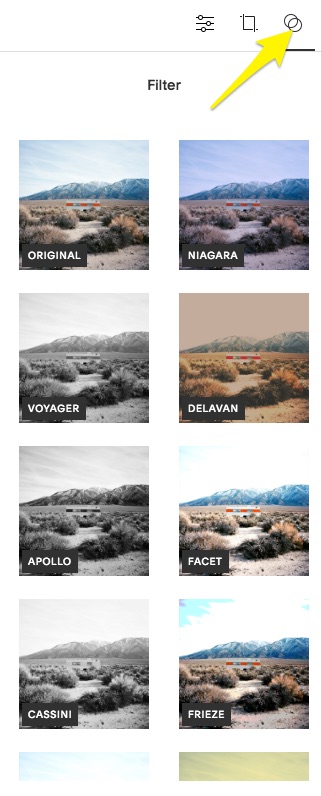
Filter
Click the Filter icon, then use the thumbnails in the sidebar to add color filters your image.
Note: You may need to scroll to see all filter options, depending on the size of your browser.
Edit images outside of Squarespace
If the Squarespace Image Editor doesn't have the editing options you need, you can use any third-party image editing software before adding images to your site.
Before editing images in a third-party tool, review our formatting tips and specifications.
Comments
0 comments
Article is closed for comments.