
After you’ve added an image to your site, you can add it to other areas of your site using Image Search. In the Imported tab, you’ll see any images you’ve added, including:
- Images you’ve uploaded to your site
- Stock images
- Images from a connected Instagram account
This guide explains how to reuse images throughout your site and how to download stock images or purchase additional licensing for Getty Images.
Before you begin
- If you’ve uploaded the same image to your site multiple times, you'll see multiple versions of it in the Imported tab.
- All uploaded image files or imported stock images remain in the Imported tab indefinitely. Deleting an image or the page an image is on won't remove that image from the Imported tab.
- Unsplash images and licensed Getty Images stay in the Imported tab even after deleting all copies from your site.
Where you can reuse images
You can reuse images in most places where Image Search appears on your site, including:
- Banner or background images
- Blog post and event thumbnails (stock images only)
- Cover Pages
- Gallery Blocks
- Gallery Pages
- Image Blocks
- Mobile fallback images for background videos
- Page Thumbnail Images
In some areas, you can upload an image, but the uploaded image can’t be reused, including:
- Blog post thumbnails
- Custom thumbnails for videos in Gallery Pages
- Event thumbnails
- Product thumbnails
- Email Campaigns
- Site logo
Step 1 - Open Image Search
To reuse an image, first open Image Search. Here’s how to find Image Search in each of these areas:
- Background images - Click the image icon in Site Styles, then click Search For Image.
- Cover Pages - Click inside the image uploader, then click Search Images.
- Gallery Blocks - Click the + icon in the bottom-right corner of the Gallery Block editor, then click Search Images.
- Gallery Pages - Click the + icon in the Gallery Page panel, then click Search Images.
- Image Blocks - Click Search For Image in the image uploader.
- Page thumbnail, banner, and mobile fallback images - Click Search For Image in the image uploader.
Step 2 - Reuse an image
To reuse an image:
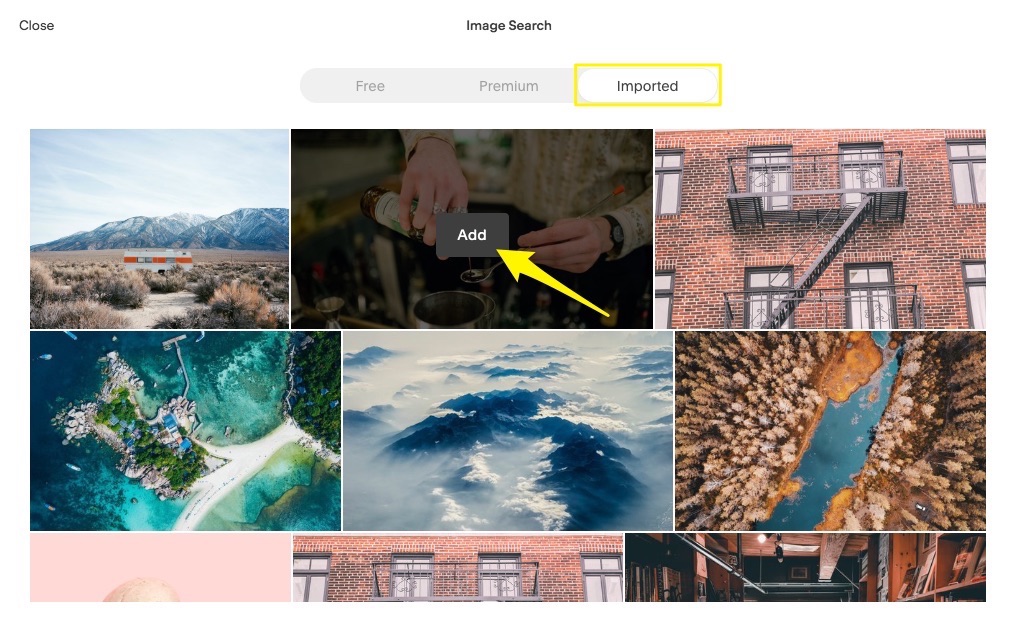
- In the Image Search window, click Imported or Recent.
- Hover over the image you want to use and click Add. You may need to scroll to see all images. For premium Getty Images, you’ll only see the images you’ve licensed.
Download an Unsplash image
You can download, copy, modify, and distribute Unsplash images for free. When you download an Unsplash image, you can reuse it across multiple sites by uploading them the same way you upload images you own.
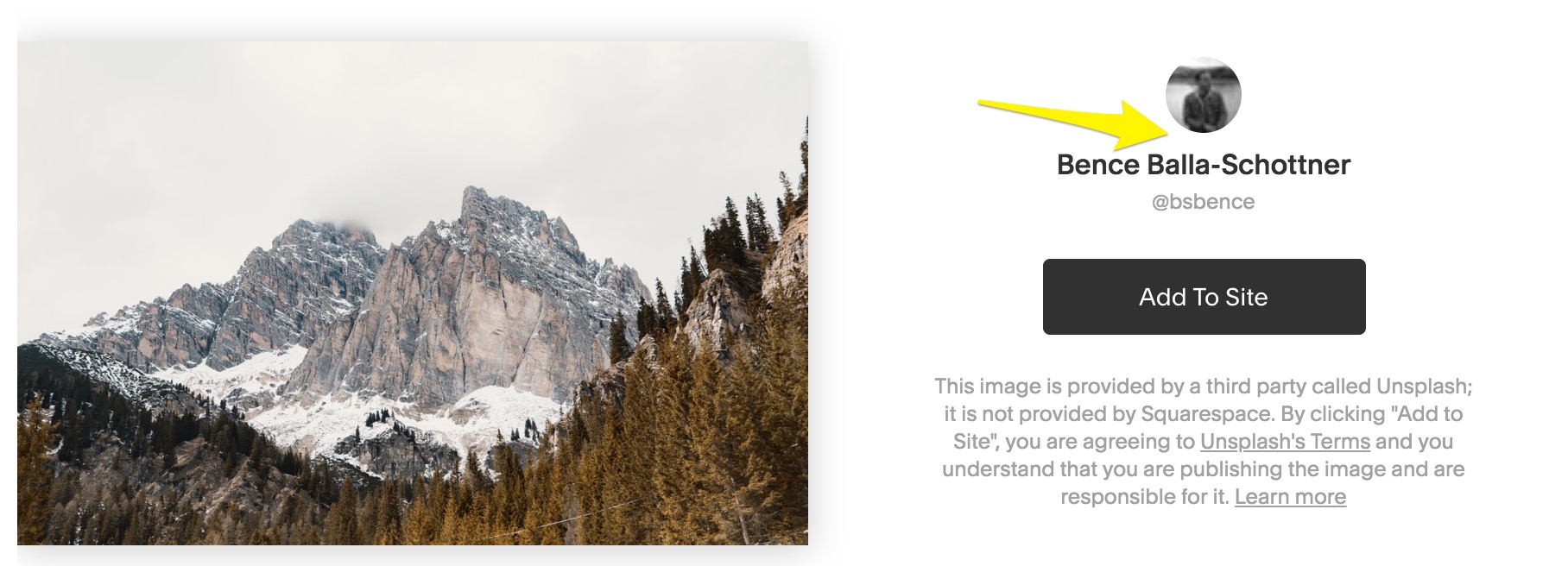
It’s not possible to download an original Unsplash image file after adding it to your site, but you can look for the original image on Unsplash by clicking the artist’s name before clicking Add To Site. This takes you directly to user’s profile on Unsplash where you can search for the image and download the original version.
You can also search Unsplash’s entire site using the same search terms you used in the Squarespace integration.
Purchase additional licensing for Getty Images
Getty Image purchases through Squarespace are only licensed for use on your site. You can license additional sizes and resolutions for print, social media, or commercials.
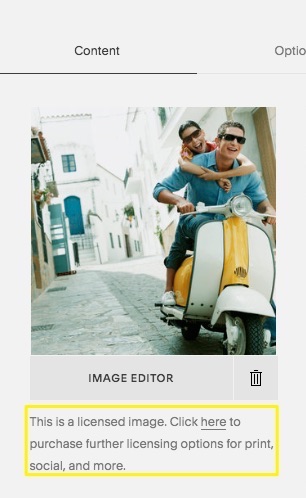
To purchase additional licensing, find where you’ve added the licensed Getty Image and open the editor. Follow the link to see the additional licensing options.
Note: Licensing links don't appear in Gallery Blocks.
Here’s how this looks in a Gallery Page:
Comments
0 comments
Article is closed for comments.