
Many image areas on your site have a built-in centering feature called the focal point. The focal point sets the focus of an image, giving you control over where the image is centered.
Images with focal points
You can adjust the focal point for most images.
In version 7.1, you can adjust the focal point for:
- Image Blocks
- Gallery sections
- Thumbnail images
- Section background images
In version 7.0, you can adjust the focal point for:
- Image Blocks
- Gallery Blocks
- Gallery Pages
- Thumbnail images
- Most banner images
Focal points aren't optimized for:
- Background images in version 7.0 uploaded in Site Styles - These images don't have focal points. To adjust the image's focus and cropping, use the Position and Size Site Styles tweaks.
- Images with parallax scrolling - These images have focal points. However, because of how parallax scrolling works, the changes may not have a noticeable impact on an image's position, especially for short, wide images.
- Videos in any area of your site.
Tip: You can crop and resize images using other built-in tools.
Set the focal point
- Open the block, section, or image.
- Hover over the image to display the focal point, which looks like a small circle. This example uses a page thumbnail, but the process is similar for all focal points.
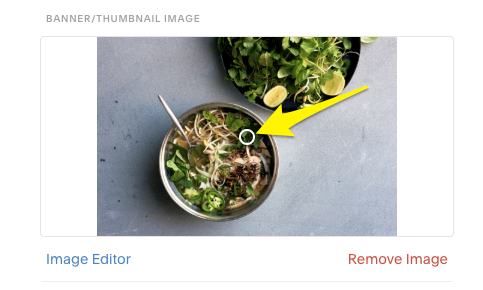
- Click and drag the focal point to set the central focus area.
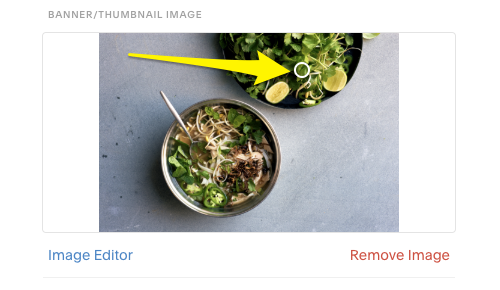
The area set by the focal point now appears as the center of your image. The new focal point automatically saves in the new position, even if you don't click Save.
Tip: For some images, the focal point may jump to the center of the image if you attempt to set it very close to the center. This is expected, and only happens when the move from center would make no visual difference.
More help
Image size and shape
The height and width of your image, and the shape of the container that it's filling, have a big impact on how much of an effect the focal point has.
For example, if you add a landscape-oriented image to an Image Block that's set to display as a square, any horizontal changes you make to the focal point will make a big difference. The image is wider than the container, so there's room on either side for it to re-center.
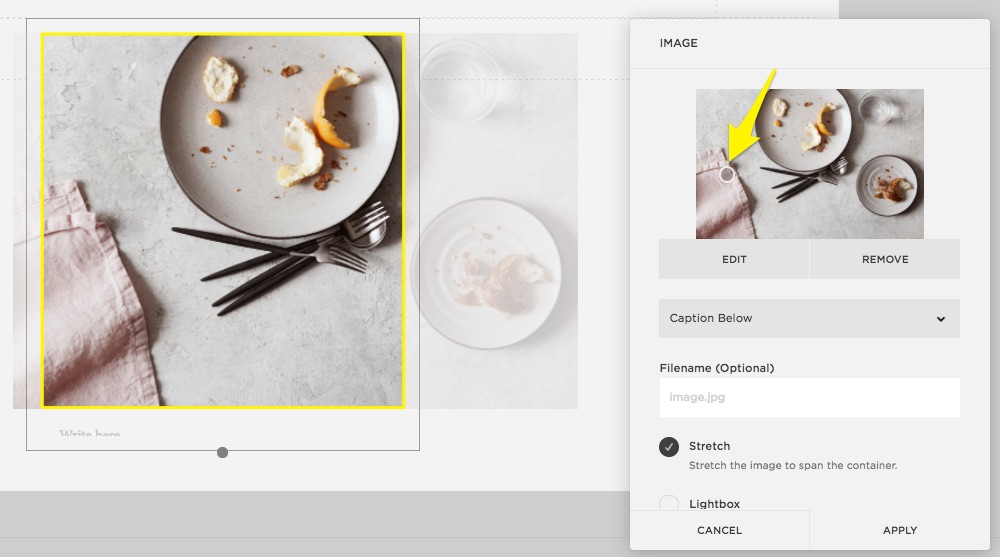
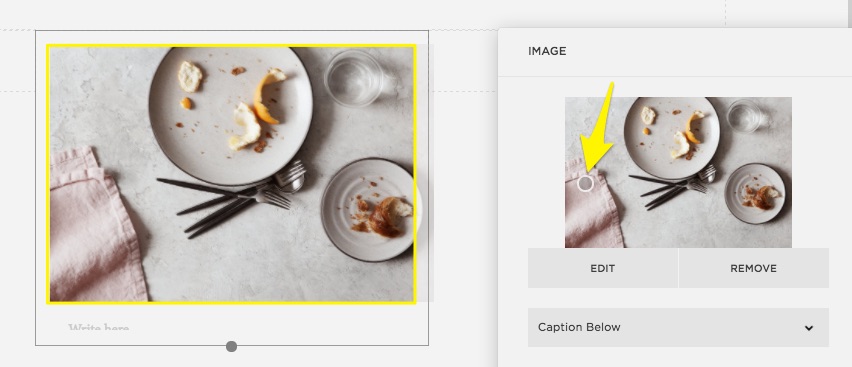
On the other hand, if your image's container and the original image are the same basic shape and size, moving the focal point won't make a big difference.
Tip: To adjust the container height for Image Blocks, use the cropping handle.
Gallery images
- You can adjust the focal point in the main Gallery Page or gallery section editor. To make fine-tuned changes, use the Image Editor.
- In version 7.0, if you've set up a Gallery Block to pull images from a Gallery Page, make the focal point changes within the Gallery Page.
Image display
If your image looks fuzzy or distorted:
- Ensure you're following our formatting guidelines.
- Learn how responsive design affects banners and other images.
- Learn more about Image Blocks, gallery sections, Gallery Pages, Gallery Blocks, thumbnail images, or banner images to understand how they display on the page, and how you can adjust the image container sizes.
Comments
0 comments
Article is closed for comments.