
If your PayPal Business account uses an address in one of the countries below, you can accept PayPal as a payment method as long as you receive payments in a supported currency.
- Australia
- Brazil
- India
- Israel
- Japan
For these countries, our standard PayPal setup isn’t available. Instead, you’ll manually connect PayPal by following this guide. This process requires giving Squarespace API permissions in your PayPal account and then adding your PayPal Merchant Account ID to your site’s settings.
After the setup process is complete, the PayPal integration is identical. For general information about PayPal, visit Accepting PayPal.
Tip: If you see the Restricted Region Detected message and your PayPal address isn’t in one of these countries, click continue directly to PayPal, and follow these steps to continue with the automatic setup.
Step 1 - Give Squarespace API permissions
Go to www.paypal.com and log into your PayPal Business account. Follow these steps to allow Squarespace to connect to PayPal to process your orders:
- Click your account name in the top-right corner.
- Click Account settings.
- Choose Account access in the left navigation.
- Click API Access.
Note: At this point, you may be asked to choose how you will collect payments, and which payment methods you accept.
- Under Pre-build payment solution, click Grant API permission.
- Enter paypal-payments_api1.squarespace.com
- Click Lookup.
- Choose all permissions, then click Add.
Step 2 - Copy your PayPal Merchant Account ID
In your PayPal account:
- Click your account name in the top-right corner.
- Click Account settings.
- Click Business information.
- Copy your PayPal Merchant ID.
Step 3 - Connect PayPal to your site
Log into your Squarespace site and follow these steps:
- In the Home Menu, click Commerce, and then click Payments.
- Click Connect PayPal.
- Enter your PayPal credentials.
- Paste the PayPal Merchant ID you copied in step 2.
- Click Connect.
Step 4 - Approve Squarespace Commerce transaction fees
In addition to PayPal processing fees, you may be charged Squarespace Commerce transaction fees if you’re on the Personal or Business billing plan. These fees will be charged to your PayPal account.
- On your Squarespace site, in the Next Step window, review your plan's Commerce transaction fee information, then click Agree & Continue.
- A pop-up window will open.
- Log into your PayPal Business account, choose a payment method for the fees, then click Agree & Continue.
Note: If you haven't chosen a credit or debit card for your PayPal account, you may be prompted to do so.
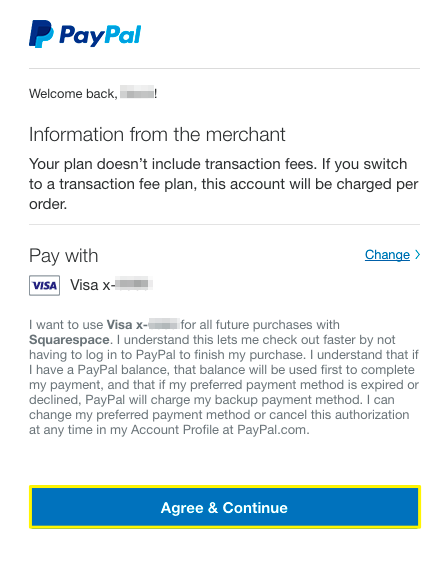
After accepting the fee agreement, your PayPal connection is complete!
Who to contact for support
Squarespace Customer Support can help you with the following PayPal integration questions:
- Connecting PayPal
- Issuing refunds
- Order management
- Most checkout issues
- General questions before signing up
For anything else related to PayPal, including declined charges, prohibited products, or required information, please contact PayPal or visit their documentation. Popular articles include:
- Confirm your bank account
- How long do bank transfers take?
- Verify your account
- Withdraw your money
- Reset password
- Prohibited businesses
FAQ
For more help with PayPal, visit PayPal FAQ and Accepting PayPal.
Comments
0 comments
Please sign in to leave a comment.