Use this guide as a reference as you complete the product import .csv template. In version 7.1, you can import up to 10,000 products per Store Page. In version 7.0, you can import up to 200 products per Products Page. In both versions, products can have up to 100 variants. For help importing the file, visit Importing products from a .csv.
Tip: If the .csv file doesn't download automatically, right-click the link and select Download linked file.
Product importing is only available on the Commerce Basic and Advanced plans.
Complete the .csv file
Add your products to the downloaded .csv file. The .csv spreadsheet contains sample text, which shows how to format your product information.
To complete the spreadsheet:
- Open the .csv file in a spreadsheet editor, like Google Sheets or Microsoft Excel.
- Add your products one row at a time, following the example rows and tips in the table below.
- Delete the example rows.
- Save the file.
When you enter your products in the .csv file, ensure that you:
- Complete all required columns for each product.
- Don’t change or delete any column headers.
- Don't add or delete columns. You can leave optional columns blank instead.
- Delete all example rows after using them as a reference for formatting your data.
- Delete all empty rows.
- Save the file as a .csv.
If you exported a products .csv file and plan to import the products to a different site, remove the values under Product ID and Variant ID, keeping the headers intact.
Note: If your computer uses a language other than English, your spreadsheet editor may change comma-separated values to semicolon-separated values. This will cause compatibility issues when you import your products. To ensure your products import, replace the semicolons with commas.
Formatting tips
Use these tips to help format your entries.
Product ID and Product Variable columns
Click the tabs to find instructions based on what you're using the product import for:
Use these tips if you're filling out a blank product import .csv template.
|
Product ID [Non Editable]
|
|
|
Variant ID [Non Editable]
|
|
Use these tips if you exported your products to a .csv file to bulk-edit them.
|
Product ID [Non Editable]
|
- Our system uses the values in this column to edit existing products in your store. Don't edit existing values in this column.
- Leaving this column blank will create new products.
|
|
Variant ID [Non Editable]
|
- Our system uses the values in this column to edit existing products in your store. Don't edit existing values in this column.
- Leaving this column blank will create new variants.
|
Use these tips if you exported your products to a .csv file to import them to a different Squarespace site.
|
Product ID
|
- If there are existing values in this column, remove them.
|
|
Variant ID
|
- If there are existing values in this column, remove them.
|
Other columns
For all other columns, follow these tips:
|
Product Type [Non Editable]
|
- Required
- Our system uses the values in this column to edit existing products in your store.
- Don't edit existing values in this column.
- When importing, if the field is blank, enter Physical or Service depending on the product type.
|
|
Product Page
|
-
Version 7.1 - Required
-
Version 7.0 - Optional (leave blank to create a new, not-linked Products Page)
- The Products Page URL slug where the product will import, without the /.
- Enter an existing Products Page slug to import to an existing page. Adding a non-existent slug will cause the import to fail.
- If the product has variants, enter each variant on a new line. You only need to enter the Products Page URL for the first variant.
|
|
Product URL
|
- Required
- The URL slug the product will have on your site, without the /. This creates a direct URL to the product details page.
- Between 3 and 200 characters.
- Separate words with dashes (-).
- Don’t include spaces or special characters other than dashes.
- Capital letters will automatically become lowercase on your site.
- If the product has variants, enter each variant on a new line. You only need to enter the product URL for the first variant.
- Example: v-neck-t-shirt
|
|
Title
|
- Required
- Up to 200 characters.
- If the product has variants, only enter the product title in the first variant’s row.
- Example: V-Neck T-Shirt
|
|
Description
|
- Optional
- If the product has variants, only enter the description in the first variant row.
- Example: Made of our softest blend of cotton.
|
|
SKU
|
- Optional
- Up to 20 characters per SKU.
- If you leave this blank, Squarespace will automatically generate SKUs for each product/variant.
- Example: SQ3579
|
|
Option Name 1
|
- Optional
- The label of a drop-down menu.
- Each pair of an Option Name # and Option Value # creates a variant. Add a new row for every possible combination of options in the product. For more help, see Format variants.
- Example: Color
|
|
Option Value 1
|
- Optional
- An option inside of a drop-down menu.
- Examples: Blue, Red, Black
|
|
Option Name 2
|
- Optional
- The label of a drop-down menu.
- Each pair of an Option Name # and Option Value # creates a variant. Add a new row for every possible combination of options in the product. For more help, see Format variants.
- Example: Size
|
|
Option Value 2
|
- Optional
- An option inside of a drop-down menu.
- Examples: Small, Medium, Large
|
|
Option Name 3
|
- Optional
- The label of a drop-down menu.
- Each pair of an Option Name # and Option Value # creates a variant. Add a new row for every possible combination of options in the product. For more help, see Format variants.
- Example: Sleeve Length
|
|
Option Value 3
|
- Optional
- An option inside of a drop-down menu.
- Examples: Long Sleeve, Short Sleeve
|
|
Price
|
- Optional
- The price of the product or variant.
- Enter numbers and decimal points (.) only. After the import, prices will display in your store’s currency.
- The price field only supports two decimal places, so round values to the nearest hundredth. Example: enter 10.513 as 10.51.
|
|
Sale Price
|
- Optional
- If the product is on sale, this is its sale price.
- Only enter a sale price if the sale status is set as Yes (next column).
- Leave this field blank to only display the standard price.
- Enter numbers and decimal points (.) only. After the import, prices will display in your store’s currency.
- Sale price must be lower than the listed price.
- Example: 7 or 7.50
|
|
On Sale
|
- Optional
- The product or variant’s sale status. Enter Yes if the product or variant should display a sale price. Enter No if the product isn't on sale.
- If the status is Yes, the product will display a Sale label, the sale price, and the original price with a strikethrough. See an example.
- Leave the field blank to only display the standard price.
|
|
Stock
|
- Optional
- The number of products or variants in stock. Enter unlimited for items with unlimited stock.
- Example: 35
|
|
Categories
(version 7.1)
|
- Required
- Ensure these match existing categories
- Enter the URL slug from the filtered category or subcategory page, including the /
- Category example: /clothing
- Subcategory example: /clothing/blouses
- How to find the URL slugs
- Lowercase only
- To add multiple, separate by commas
- Up to 25 characters per category
- If the product has variants, only enter categories in the first variant row
|
|
Categories
(version 7.0)
|
- Optional
- Enter the category name
- Lowercase only
- To add multiple, separate by commas
- Up to 25 characters per category
- If the product has variants, only enter categories in the first variant row
|
|
Tags
|
- Optional
- Up to 80 characters per tag.
- Separate tags by commas.
- If the product has variants, only enter tags in the first variant row.
- Example: organic, soft
|
|
Weight
|
- Optional
- Enter numbers and decimal points (.) only. After the import, dimensions will match your store’s measurement standard.
- Example: 5 or 5.5
|
|
Length
|
- Optional
- Enter numbers and decimal points (.) only. After the import, dimensions will match your store’s measurement standard.
- Example: 5 or 5.5
|
|
Width
|
- Optional
- Enter numbers and decimal points (.) only. After the import, dimensions will match your store’s measurement standard.
- Example: 5 or 5.5
|
|
Height
|
- Optional
- Enter numbers and decimal points (.) only. After the import, dimensions will match your store’s measurement standard.
- Example: 5 or 5.5
|
|
Visible
|
- Required
- Enter Yes to make the product visible after importing or No to keep it hidden.
- If the product has variants, only enter a visibility status in the first variant row.
|
|
Hosted image URLs
|
- Optional
- Only works for importing new products, not bulk editing products.
- Supports web-hosted product image link(s). Paste the image’s full URL. Ensure the URL leads directly to the image, not a page that includes the image. Ensure the URL ends in an image file extension—like .jpg, .gif, or .png—instead of .com or .html.
- Separate multiple images with spaces or line breaks. (Google Sheets: Alt+Enter or Excel: Ctrl+Alt+Enter)
- If the product has variants, only enter image URLs in the first variant row.
- It’s not possible to upload images from your hard drive into this .csv.
- After importing, Squarespace becomes the host for these image files. Changing or deleting the hosted image URLs won't affect your images.
|
Finding URL slugs
Store Page
To find the Store Page’s URL slug:
- In the Pages panel, click the
 beside the Store Page.
- The URL slug displays beneath URL slug.
- Enter this is the Product Page row without the /.
Categories and subcategories (version 7.1 only)
To find category and subcategory URL slugs:
- In the category manager, click the … icon beside the category or subcategory.
- Copy the text beneath URL slug.
- Enter these slugs in the Category row with the /.
Subcategory URL slugs always include the main category. For example, if blouses is a subcategory of clothing, the subcategory URL slug would be /clothing/blouses.
Format variants
Variants are variations of a product with different attributes, like size or color. Learn more about basic and complex variants.
If your product has variants, enter a new row in the .csv for each possible combination of options. Complete all relevant fields for the main item, then create a new row for each variant. You only need to add the Product URL for the first variant. This will import your variants as different versions of the same product, and add them to drop-down menus on the product details page.
For each variant, keep these fields blank so they inherit the same values for the main item:
- Product Type
- Title
- Description
- Categories
- Tags
- Hosted Image URLs
You can complete all other optional columns for each variant.
Note: A single product can have up to 100 variants.
Completing the combination rows
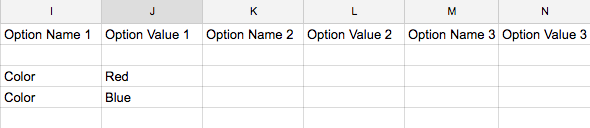
For example, you’re selling a tote bag that comes in blue and red. On your site, this product will have one Color drop-down menu.
- First variant row: Enter Color as Option Name 1, then Red as Option Value 1.
- Second variant row: Enter Color as Option Name 1 and Blue as Option Value 1.
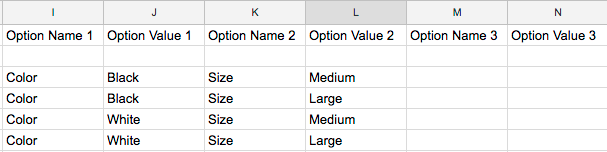
As another example, you’re selling a shirt that comes in black or white, and you sell sizes Medium or Large. On your site, this product will have two drop-down menus: Color and Size. You’ll create four variant rows to cover the different combinations:
As a third example, you’re selling a shoes that come in brown or black, sizes 6 through 10, and M or W width. On your site, this product will have three drop-down menus: Color, Size, and Width. You’ll create many rows that cover the different combinations of options. The first few rows should look like this:
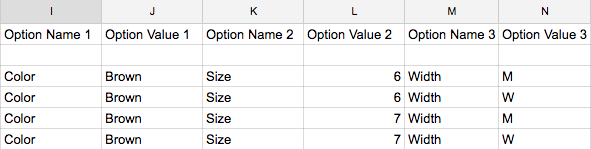
Note: The import doesn't support additional Option Value and Option Name columns.
Import the .csv file
After you complete the product import .csv template, upload it to your site. For detailed steps, visit Importing products from a .csv.

Comments
0 comments
Please sign in to leave a comment.