
Express Checkout directs customers to a checkout page after clicking a product rather than adding it to a shopping cart. This is a great option for stores selling one product who want to simplify the checkout process and reduce cart abandonment.
Enabling Express Checkout:
- Replaces the Add to Cart button on a product's details page with a Purchase button.
- Removes the shopping cart and its icon from your site.
Note: Express Checkout prevents customers from adding multiple products to a cart. We recommend Express Checkout only if you have one product in your store, and don't have a minimum order amount.
Enable Express Checkout
- In the Home Menu, click Commerce, and then click Checkout.
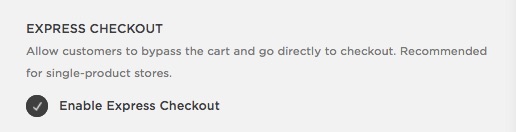
- Scroll down to Express Checkout and check Enable Express Checkout.
Use Express Checkout
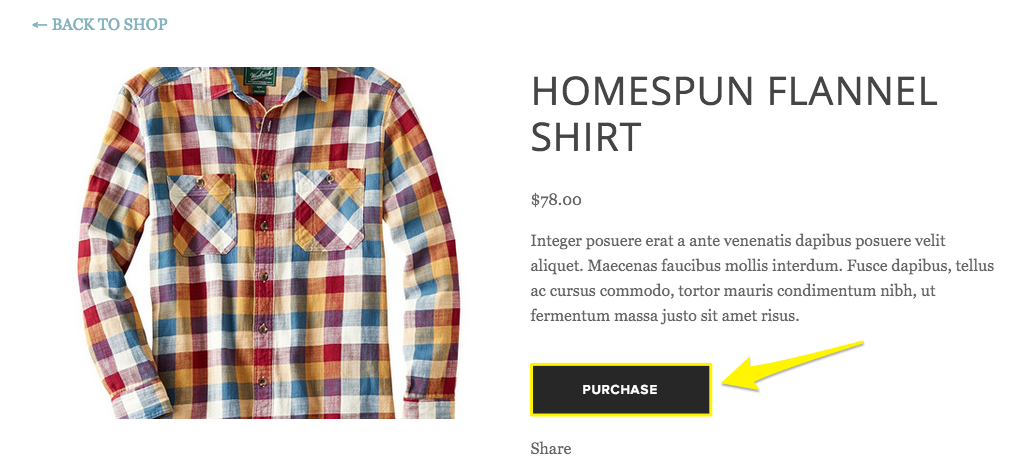
When a customer views a product, they'll see a Purchase button in place of the Add to Cart button. Clicking Purchase will take them directly to the checkout page.
Disable Express Checkout
If you add more products to your store, we recommend disabling Express Checkout so customers can buy multiple products.
To disable Express Checkout:
- In the Home Menu, click Commerce, and then click Checkout.
- Scroll down to Express Checkout.
- Uncheck Enable Express Checkout.
It's not possible to disable Express Checkout for subscription products.
Troubleshooting
Customers are ordering multiple items at a time
This can happen when a customer leaves the checkout page to edit their order total. When this happens, the original order is saved and the new order total is added on. To edit the order total after going to checkout, customers should clear their carts. To issue a partial refund, visit Cancelling and refunding orders.
This can also happen if you've set a minimum order amount. Customers can edit the item quantity at checkout if they haven't met the order minimum.
Comments
0 comments
Article is closed for comments.